Connect Supabase Postgres to Directus
← Back to Supabase Integration
You run self-hosted Directus against a Supabase PostgreSQL database. You need one Supabase project for Postgres, a host where you run Docker Compose (or another runtime), and environment variables that match Supabase's connection details.
You often pair a Supabase-backed application with Directus for an admin surface and marketing CMS.
Before You Start
This guide sets up two separate things that work together:
- Supabase hosts your PostgreSQL database in the cloud. It does not run Directus — it only provides the database that Directus connects to.
- Directus runs on a separate host using Docker Compose. This can be your local machine for development, or a server or cloud platform (such as Railway, Render, or a VPS) for production. See Self-hosting: Deploying for options.
You will need:
- A Supabase project with PostgreSQL available
- A machine or host where you can run Docker and Docker Compose
- Network access from that host to Supabase Postgres on port 5432 (direct connection, not transaction pooler mode)
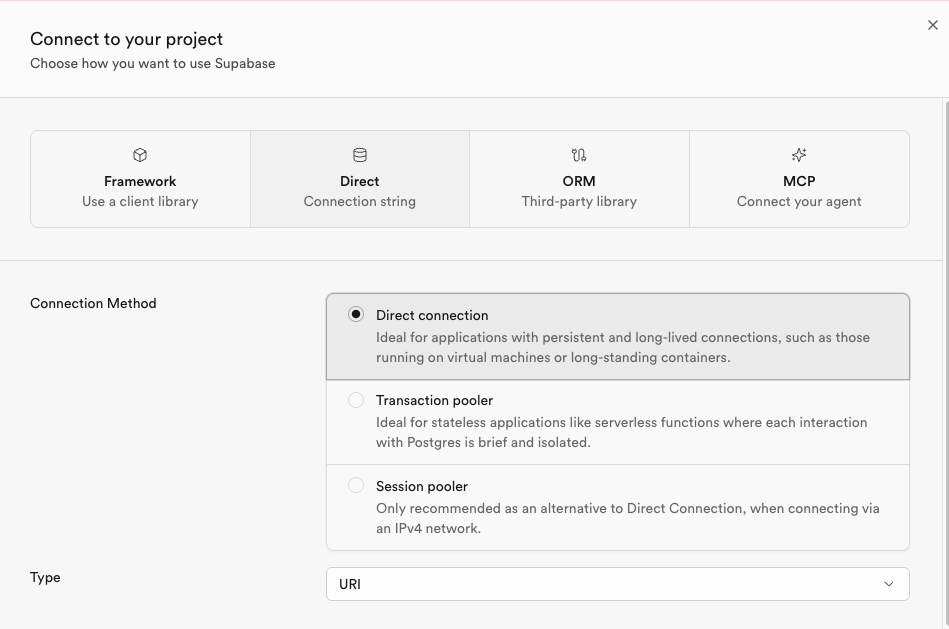
Get the direct connection string from Supabase
Supabase exposes more than one connection mode. Use the direct database connection on port 5432 for Directus. Use transaction pooler mode on port 6543 only after you confirm your driver and workload behave correctly with pooling.
- Open the Supabase Dashboard and select your project.
- Click the green Connect button in the top navigation bar.
- In the "Connect to your project" modal, click the Direct tab.
Configure Directus with Docker Compose
Enter your connection details from the Direct tab into the fields below to generate a ready-to-use docker-compose.yml.
Set PUBLIC_URL to the URL clients use to reach Directus. Add other required variables for your environment (see General and Self-hosting: Deploying).
SSL settings
The generated file includes DB_SSL: "true" and DB_SSL__REJECT_UNAUTHORIZED: "true". Supabase recommends SSL for all Postgres connections and production projects often enforce it.
DB_SSL— set totrueso the client connects over TLS.DB_SSL__REJECT_UNAUTHORIZED— controls certificate verification. Leave thistruewhen the server certificate chains to a public CA that Node.js trusts (which is the case for Supabase). Set it tofalseonly if you need to accept a weaker trust model (for example, corporate TLS inspection) — preferDB_SSL__CAorDB_SSL__CA_FILEto supply the correct CA instead. See Database and Environment variables.
If the connection fails with TLS or certificate errors, confirm your host can reach Supabase on the direct port, then check Supabase's SSL documentation for your project.
5432) as the fallback and keep SSL enabled.Verify the connection
- Start the stack:
docker compose up(or your orchestrator equivalent) - Watch logs for successful startup and database migration messages
- Open Directus at
PUBLIC_URL, complete onboarding if prompted, and sign in - In the Data Studio, confirm collections load and create a test item in a non-system collection when you have one
If Directus cannot connect, recheck host, port (direct vs pooler), password, firewall egress to 5432, and SSL settings.
Optional: Directus Labs starters
When you start from a Directus starter template instead of a blank docker-compose.yml, keep the starter frontend and tooling as that repository documents. Replace only the Directus database environment so DB_HOST, DB_PORT, DB_DATABASE, DB_USER, DB_PASSWORD, and SSL variables match your Supabase project (same values as earlier in this guide). Set the starter Directus base URL variables to your running instance. Add Supabase Storage variables only when you want uploads in Supabase.
Next Steps
Get once-a-month release notes & real‑world code tips...no fluff. 🐰